Printing a long iPhone conversation directly from a chat screen can be awkward. A PDF gives the thread stable page breaks, a consistent layout, and an easier file to share with someone who does not use the same messaging app.
MsgPort helps you create that PDF from screenshots or a screen recording. The conversation stays under your control, and you can choose the exact range you want to print.
Choose the range to print
Start by deciding whether you need the entire thread or only a dated section. Open the conversation and include the contact name, group name, dates, and timestamps that provide context. Remove unrelated screenshots before importing.
Capture the conversation cleanly
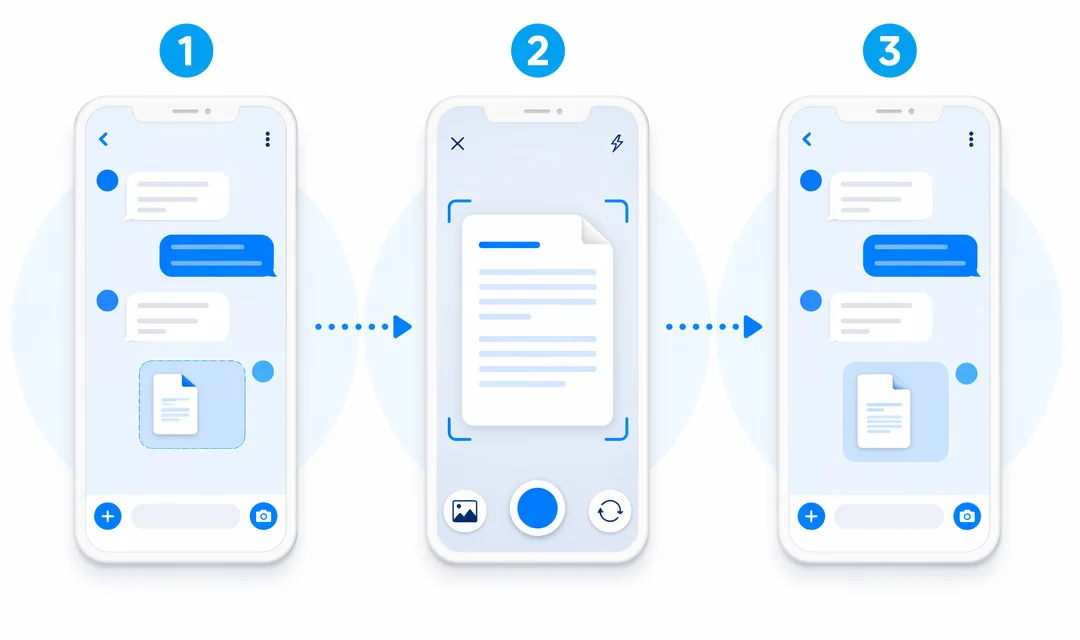
Take screenshots from oldest to newest, with a small overlap between consecutive images. If the thread is very long, record the screen while scrolling slowly. A steady recording reduces blur and avoids a pile of images to sort later.
Build a print-ready PDF
Import the selected media into MsgPort, review the recognized text, and choose PDF. Check the first and last page to confirm the date range, participant labels, and message order are correct.
For a physical printout, PDF is usually more predictable than CSV or plain text. It also works well when you need to attach the conversation to an email or save it in Files.
Print from iPhone
Open the exported PDF in Files, Mail, or another PDF viewer. Use the Share button and choose Print when a compatible printer is available. You can also send the PDF to a print service or open it on a Mac before printing.