Sometimes you need one part of an Instagram conversation, not a full account download. Screenshots are useful when you want to preserve the exact visible context of a DM, including its order and the way it appeared on your iPhone.
MsgPort works from the media you provide. Import the screenshots or screen recording, review the recognized conversation, and export the result as PDF, CSV, or plain text.
Select the conversation range
Open the Instagram DM and choose a clear starting point. Include the account or group name in the first capture when it helps identify the thread. Keep notifications, overlays, and unrelated chats out of frame.
Capture in order
Take screenshots from oldest to newest with a small overlap between images. Overlap gives the recognition step a reliable transition from one screen to the next. For long DMs, use a screen recording and scroll slowly so small text stays sharp.
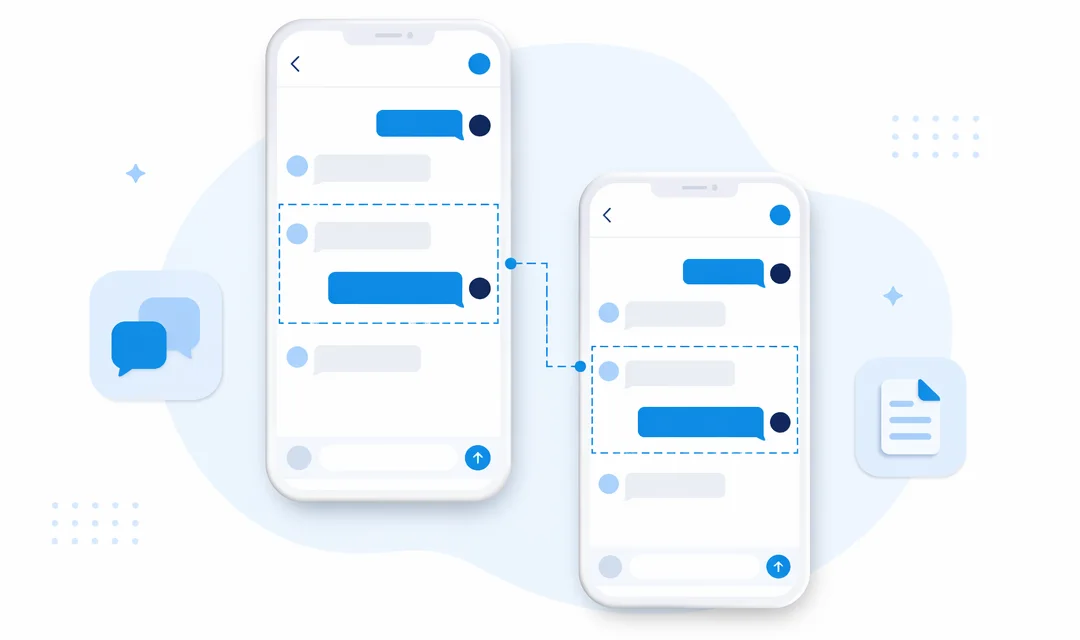
Review before exporting
Instagram mixes text, emoji, shared posts, voice messages, and images in a single thread. Review short lines and speaker labels carefully, and remove entries that do not contain text if they are not relevant to your record.
Choose a useful format
- PDF: best for reading, printing, and sharing the conversation as a document.
- CSV: best for sorting messages and adding notes in a spreadsheet.
- Plain text: best for search and a lightweight archive.
Keep the original captures until you have checked the exported file. That gives you a visual reference for any message that needs a second look.