There is no universal “Export conversation as PDF” button inside every iPhone messaging app. If you only need one thread, the most direct option is often to capture the conversation visually and turn those captures into a structured document.
MsgPort is designed for that workflow. It reads the screenshots or screen recording you select, identifies message order and visible timestamps, then lets you export the result as a PDF, CSV, or plain text file.
1. Prepare the conversation
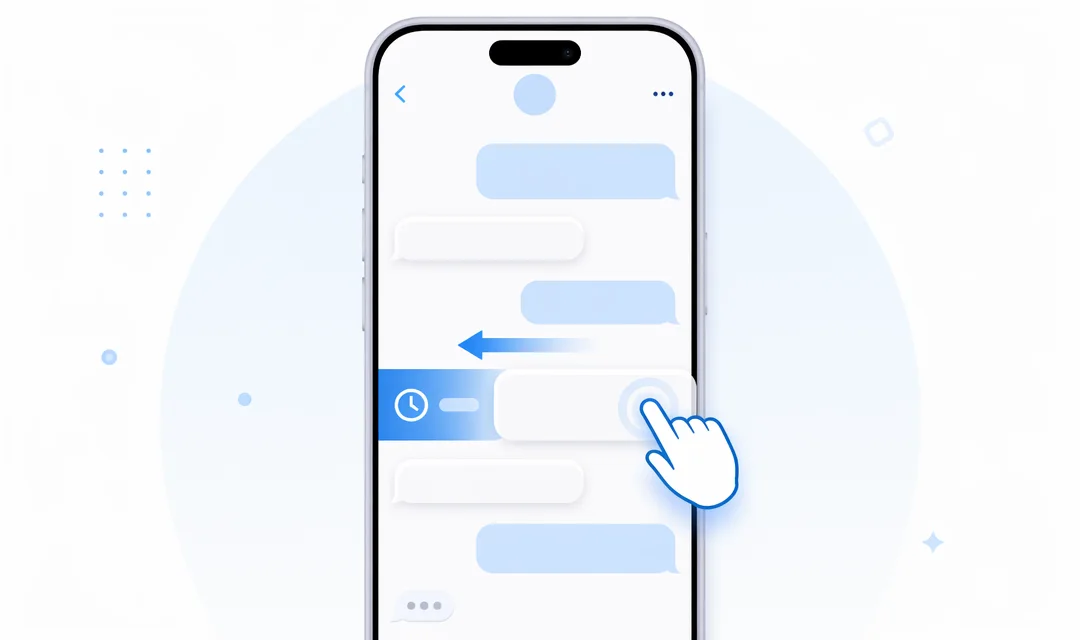
Open the thread on your iPhone and scroll to the point where you want the export to begin. If dates and times matter, make them visible before you capture. In Messages, you can drag the conversation slightly to the left to reveal timestamps.
2. Capture screenshots in order
Take screenshots from oldest to newest. Include a small overlap between consecutive images so the same message appears near the bottom of one screenshot and near the top of the next. That repeated context helps recognition software understand where one screen ends and the next begins.
For a very long thread, use an iPhone screen recording instead. Start recording, scroll at a steady pace, and pause briefly when a dense block of messages is on screen. Avoid rapid flicks because motion blur can make small text harder to read.
3. Import into MsgPort
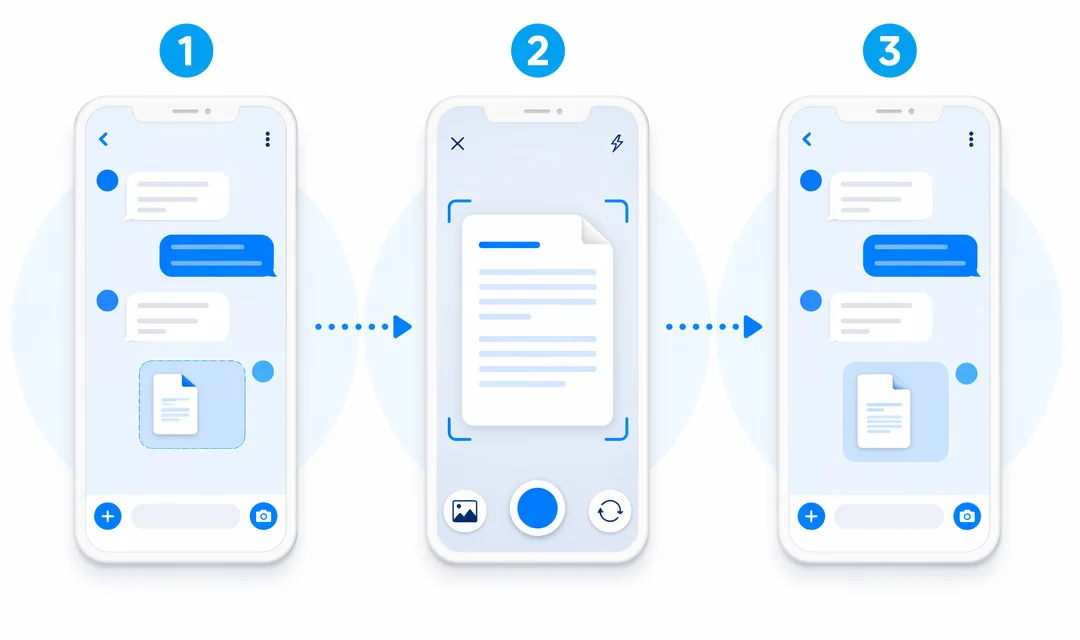
Open MsgPort and choose the screenshot or screen-recording workflow. Select only the images that belong to the conversation, in chronological order. MsgPort processes the selected media and builds a clean conversation view from the text it recognizes.
Review names, dates, and any short messages before exporting. Screens with unusual fonts, animated backgrounds, stickers, or text over media may need a quick correction.
4. Export the finished PDF
Choose PDF when the file needs to be easy to read, print, email, or attach. A PDF is usually the best choice for a personal archive or a record another person will review. Choose CSV when you need rows for analysis, and plain text when searchability and small file size matter most.
What should a useful message PDF include?
- A clear conversation title or participant name
- Visible dates or timestamps where available
- Consistent speaker labels
- Messages in chronological order
- Page breaks that do not hide or duplicate text
Tips for a cleaner export
- Use full-resolution screenshots instead of compressed copies sent through another app.
- Keep the iPhone text size consistent for the whole capture.
- Remove screenshots that show unrelated conversations.
- Capture system date separators whenever they appear.
- Review the result before relying on it as an official record.