Plain text is one of the simplest ways to preserve a conversation. It is small, searchable, easy to copy, and does not depend on a particular chat app. The challenge is getting a long iMessage thread into that format without copying every bubble by hand.
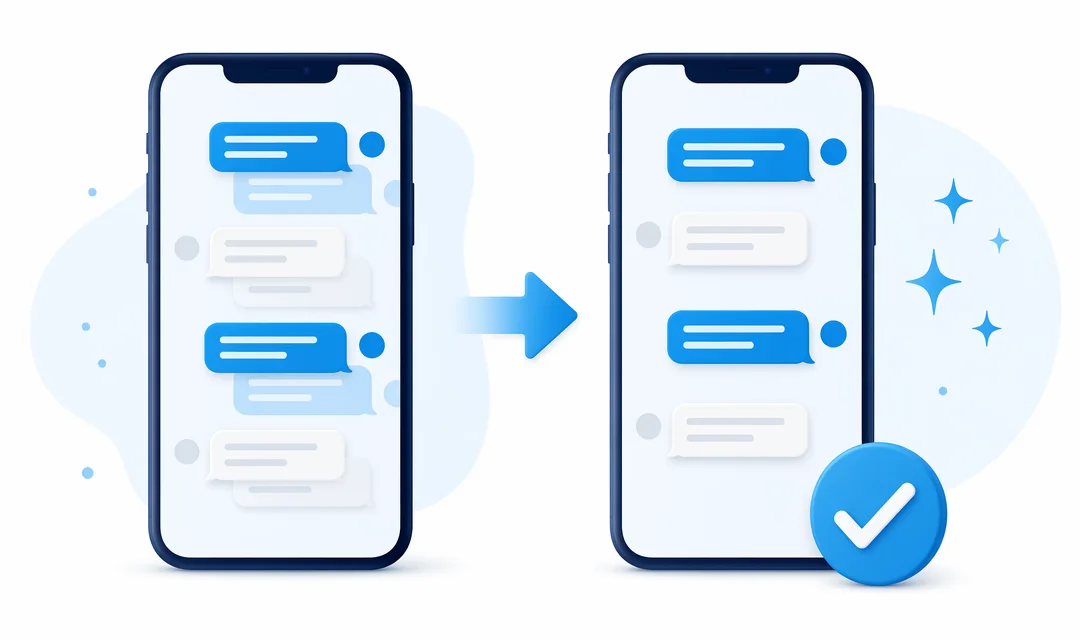
MsgPort converts screenshots or a screen recording into an organized transcript on iPhone. You control which part of the conversation is included, review the recognized messages, and export the result as text.
When plain text is the right choice
Use text when you need to search for a phrase, paste excerpts into notes, keep a compact personal archive, or process the transcript in another tool. If the visual appearance of the conversation matters, choose PDF instead. For sorting by row or date, choose CSV.
Show useful context before capturing
Open Messages and navigate to the first part of the exchange you want to save. Drag the conversation slightly to the left to reveal message times. Include date separators and the contact name where possible.

Take screenshots or record the screen
Screenshots are precise for a short thread. Capture them from oldest to newest and leave a little overlap. For a longer thread, screen record while scrolling slowly. Keep notification banners away from the conversation and avoid changing text size midway through the capture.
Convert the images to a conversation
Import the selected media into MsgPort. On-device recognition separates visible message bubbles, reconstructs the order, and creates a conversation you can review. Check short replies, timestamps, participant names, and messages containing unusual emoji before you export.
Export as plain text
Select the text format when your review is complete. Save the file to Files, send it by email, or open it in another iPhone app. Keep the original screenshots until you have checked that the transcript includes the section you intended to preserve.